
Fix WhatsApp 'Unavailable for 1 Hour' Verification Error

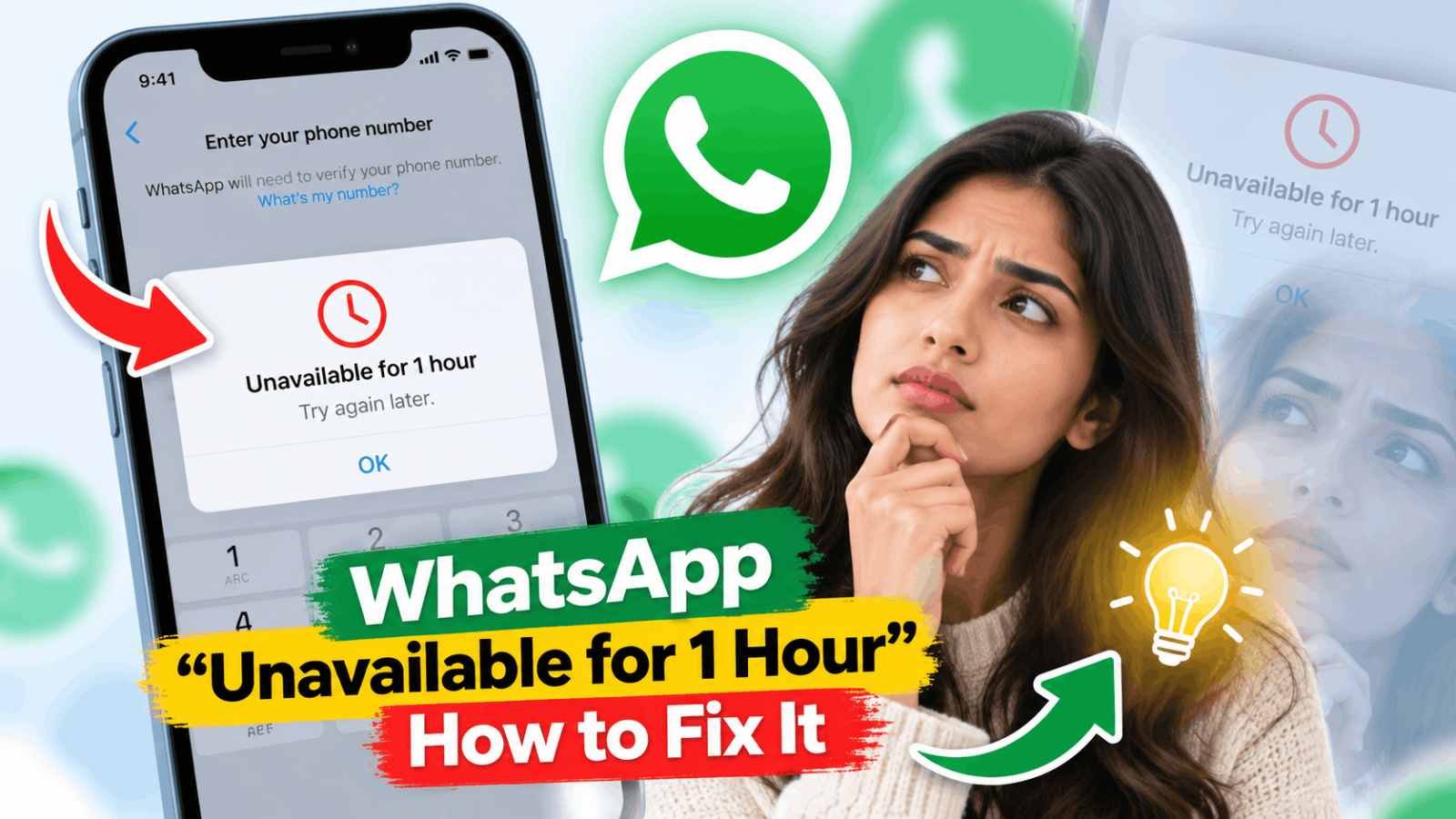
The WhatsApp 'Unavailable for 1 Hour' error is a temporary security measure that occurs when there are repeated verification attempts, incorrect code entries, or unusual activity. This article provides a step-by-step guide to fix the error and regain access to your WhatsApp account.
What Does 'Unavailable for 1 Hour' Mean on WhatsApp?
WhatsApp requires users to verify ownership of their phone number when registering an account or moving their account to another phone. Verification normally happens using a six-digit code delivered through SMS or a phone call. If WhatsApp detects too many verification attempts within a short period, it can temporarily prevent additional attempts.
This is primarily a security and anti-abuse measure. It helps prevent someone from repeatedly requesting codes in an attempt to take over another person's WhatsApp account.
Why Does WhatsApp Say 'Unavailable for 1 Hour'?
There isn't always one specific reason. The restriction can be triggered by several conditions during registration or verification, including:
- Too many SMS verification requests
- Incorrect verification codes
- Repeated login attempts
- Network or SIM problems
- Switching phones repeatedly
- Call or SMS blocking
- Unusual registration activity
How to Fix the WhatsApp 'Unavailable for 1 Hour' Error
Follow these steps to fix the error and regain access to your WhatsApp account:
- Wait for the full one-hour timer to finish. Avoid repeatedly closing WhatsApp, reinstalling it, changing your phone number, or requesting another verification code during this period.
- Check your phone number and country code. Make sure you have entered the correct phone number and country code.
- Restart your phone before trying again. This can reconnect your device to the cellular network and clear temporary network or application problems that may interfere with receiving SMS messages.
- Check whether your SIM can receive SMS messages. Ask someone to send a regular SMS message to the same number. If the message doesn't arrive, the problem may be with your mobile carrier, SIM card, network coverage, or device rather than WhatsApp.
- Request the code only once. Do not repeatedly tap Resend SMS because the message doesn't arrive immediately.
- Try the WhatsApp voice-call option if SMS verification still doesn't work. Wait until WhatsApp makes the phone-call verification option available.
- Turn off SMS and call blocking temporarily. Spam protection applications, call blockers, security applications, and carrier-level filters can sometimes interfere with WhatsApp verification.
- Switch between Wi-Fi and mobile data. WhatsApp requires a working internet connection to complete registration.
- Use email verification if WhatsApp offers it. Email verification may be available when you're re-registering an existing WhatsApp account and previously added and verified an email address with that account.
- Avoid reinstalling WhatsApp repeatedly. Users sometimes uninstall WhatsApp as soon as the one-hour error appears. This usually isn't necessary because reinstalling the application doesn't automatically remove a verification restriction maintained by WhatsApp.
- Wait longer if the verification lock keeps returning. Stop requesting codes for a while and wait for the displayed timer to expire.
Most importantly, never guess verification codes or share a WhatsApp registration code with another person. If the waiting period repeatedly returns despite using the correct number and a working SIM, use the support option provided inside WhatsApp rather than relying on unofficial verification or bypass services.