7 Quick Fixes for Meta Ray-Ban Display Not Pairing Issues

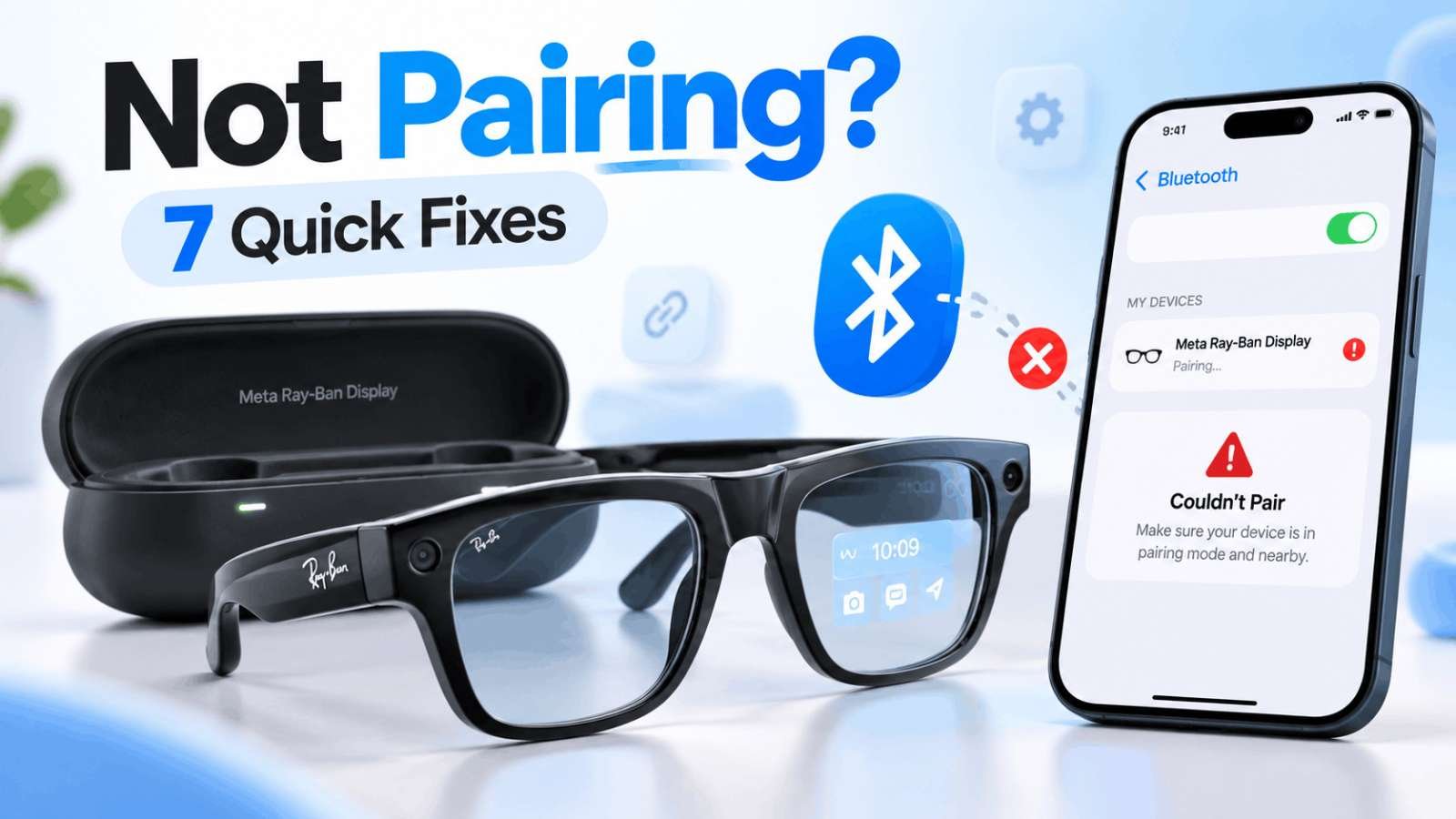
Meta Ray-Ban Display users may experience pairing issues, but fortunately, most problems can be fixed without resetting everything. Before troubleshooting, ensure your phone meets the basic requirements, such as a compatible OS version, and check that both the glasses and their case are charged.
Common Reasons for Meta Ray-Ban Display Not Pairing
The Meta Ray-Ban Display uses Bluetooth to communicate with your phone, while Wi-Fi is also used for features such as updates, media transfers, and Meta AI services. A problem with either the glasses, charging case, phone, or Meta AI app can interrupt the initial setup process.
Common reasons for Meta Ray-Ban Display not pairing include:
- The glasses are not actually in Bluetooth pairing mode.
- The charging contacts are not properly connecting inside the case.
- Your phone still has an old Bluetooth pairing saved.
- The glasses were previously connected to another Meta account.
- The Meta AI app has become stuck during setup.
- Bluetooth or required permissions are disabled.
- The glasses or charging case have temporarily stopped responding.
- Your phone's operating system or Meta AI app is outdated.
7 Quick Fixes for Meta Ray-Ban Display Not Pairing
Here are the 7 quick fixes for Meta Ray-Ban Display not pairing issues:
1. Put Meta Ray-Ban Display Into Pairing Mode Correctly
Ensure your glasses are actually entering pairing mode by following these steps:
- Remove the Meta Ray-Ban Display glasses from the charging case.
- Turn them on by sliding the power switch on the left frame toward the front of the glasses.
- Place the glasses back inside the charging case.
- Gently press the glasses downward so the bottom of the nose bridge properly contacts the charging connector.
- Watch the charging case LED. If the case LED begins flashing blue, the glasses are ready for pairing.
2. Charge the Glasses and Check Their Position in the Case
Remove the glasses and inspect the charging area for dust, debris, or anything preventing proper contact. Place them back inside the case and gently push down near the top of the frame so that the nose bridge connects correctly.
3. Forget the Old Bluetooth Connection and Pair Again
Look for your Meta Ray-Ban Display, tap the information icon next to it, select Forget This Device, and then completely close the Meta AI app. Turn Bluetooth off for several seconds, turn it back on, reopen Meta AI, and put the glasses into blue-light pairing mode again.
4. Restart Your Phone and Force Restart Meta Ray-Ban Display
Restart your iPhone or Android phone normally first. Then power the glasses off and back on. If a normal restart doesn’t solve the problem, Meta Ray-Ban Display has a force restart procedure: Close both arms of the glasses, turn the glasses off, press and hold the capture button, and then turn the glasses back on.
5. Update or Reinstall the Meta AI App
Open the Apple App Store or Google Play Store and check whether an update is available for Meta AI. Install it before attempting another pairing. Make sure Meta AI has the permissions required for your phone.
6. Remove the Existing Meta Account Pairing
Open Meta AI and go to the device section, select the Meta Ray-Ban Display, and then remove the glasses from the phone’s Bluetooth settings. Place them back into pairing mode and add them again using Meta AI.
7. Factory Reset Meta Ray-Ban Display
A factory reset should be the last troubleshooting step because it erases data stored on the glasses and returns them to their original setup state. Press the capture button five times, then press and hold the capture button until the notification LED begins pulsing white and orange.
Additional Tips to Prevent Meta Ray-Ban Display Connection Problems
Install firmware updates when offered, avoid manually removing the glasses from Bluetooth unless troubleshooting, keep the glasses and case reasonably charged, and do not switch between Meta accounts unnecessarily.
FAQs
Why won’t my Meta Ray-Ban Display enter pairing mode? Make sure the glasses are powered on, charged, and properly seated in the charging case. Press and hold the button on the back of the case for at least five seconds. The case LED should begin flashing blue when pairing mode is active.
Can I pair Meta Ray-Ban Display directly from Bluetooth settings? You should complete setup through the Meta AI app. Your phone uses Bluetooth as part of the connection, but the Meta AI app handles the device setup, Meta account association, settings, updates, and other functionality.
Will force restarting Meta Ray-Ban Display delete anything? No. A force restart is different from a factory reset and should not erase your captures or require a complete new setup.
What should I do if Meta Ray-Ban Display still won’t pair? If you have charged everything, removed previous Bluetooth connections, updated Meta AI, force-restarted the glasses, reset the charging case, and finally factory reset the glasses without success, the problem may require official support or warranty service.